
Back to: Affiliate Marketing Essentials
Your affiliate application gives the program team a picture of who you help and how you plan to recommend their products. Make that picture clear. In this lesson, you will create an Awin publisher account, complete the verification steps shown for your application, and check your membership in the LifterLMS affiliate program.
Watch the video above for the thinking behind a strong application. Then follow this walkthrough to put it into practice.
Before You Start
Have your contact details, business or creator name, public website or social profile, and a short description of your audience ready. Use an email account you can access. Your promotional page should help a reviewer understand what you do and who you serve.
Already have an Awin publisher account? Sign in to that account and go to Step 7 below. You can use an existing account to apply to additional programs.
1. Open the Official LifterLMS Application
Visit the LifterLMS affiliate program page and click its application button. Starting here gives you the current invitation link.
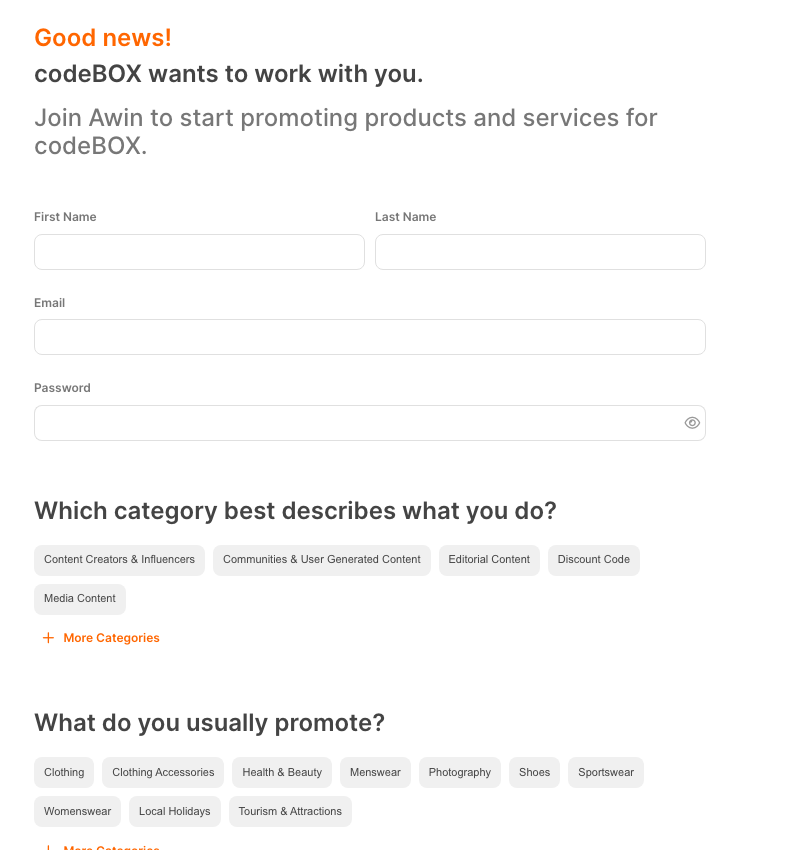
The Awin invitation is labelled codeBOX. This is the correct program for LifterLMS. Its advertiser ID is 89169. You are applying as a publisher, the person who recommends products and earns commissions.
2. Create Your Account and Choose Your Categories
- Enter your first name, last name, and email address.
- Create a strong, unique password that meets the requirements on the form.
- Choose the category that describes your work. For example, select a content creator category if you publish educational videos or tutorials.
- Choose the types of products you actually promote. Use More Categories to find a relevant option if the first suggestions do not fit your business.
The first suggestions on the screen include retail categories. Choose based on your work, rather than selecting a category simply because it appears first.
3. Describe Your Promotional Space
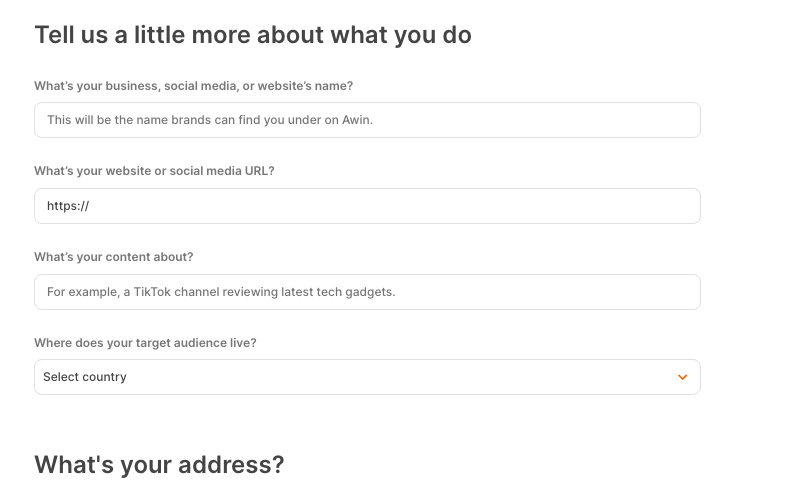
- Enter your business, website, or social media name.
- Add the full URL of the website or social profile you will use to promote LifterLMS.
- Explain what your content covers and who it helps.
- Select the country where your target audience lives.
For example, a WordPress education team might write: “We publish WordPress tutorials for coaches and course creators. We plan to show how LifterLMS helps them build and sell online courses.” Adapt this to your own audience and actual plans.
Specific details make your application easier to understand. Include the channel you use, the people you reach, and how LifterLMS fits the problems they want to solve.
4. Complete Your Address and Submit
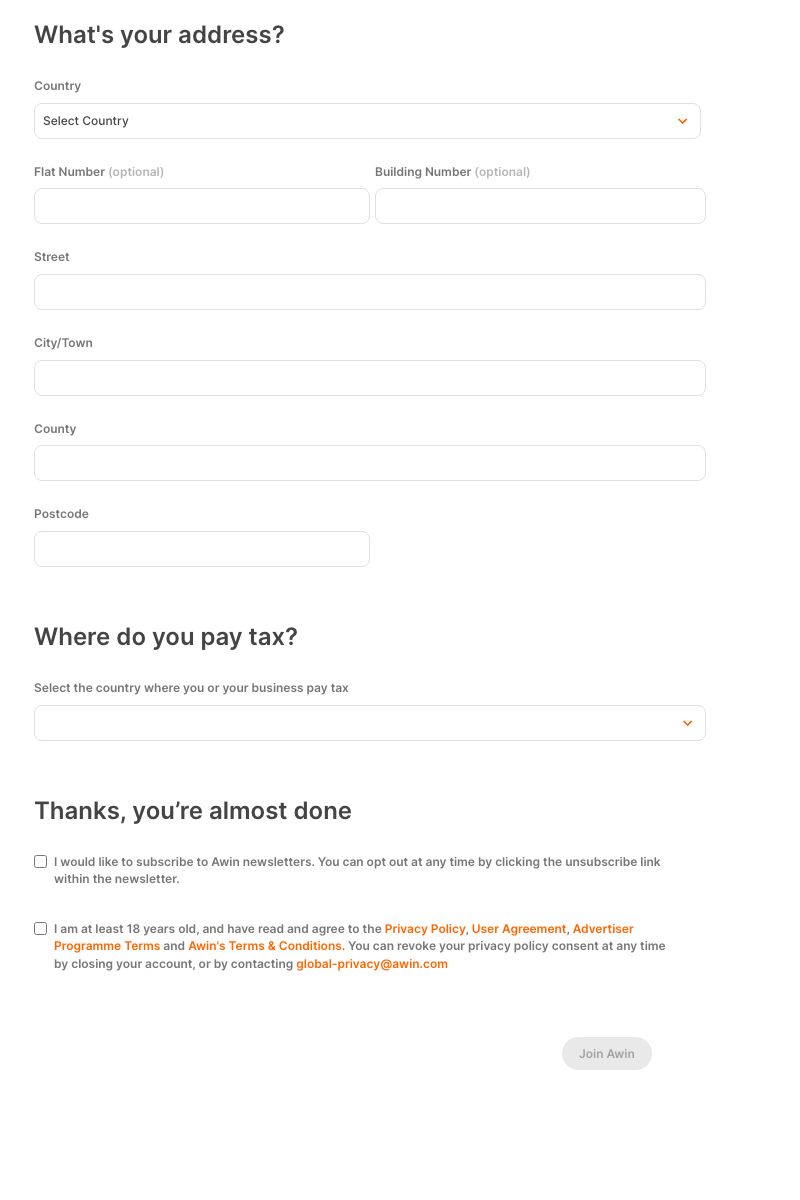
- Enter your address in the fields provided.
- Select the country where you or your business pay tax.
- Choose whether to subscribe to Awin newsletters. This is a separate preference.
- Read the linked agreements, including the advertiser program terms. Confirm the age requirement and terms only if you meet and accept them.
- Click Join Awin and read the confirmation or next steps.
The screenshots show the public express signup form captured on October 29, 2026. The screens and requirements you see can vary by signup route, country, and account.
5. Complete the Verification Requested by Awin
Follow the instructions shown after submission and in messages sent to your signup email. If Awin asks you to confirm your email address, open that message and complete the confirmation. If it requests further information about your identity or promotional space, supply the requested information through Awin’s official process.
The express form shown above does not display a card or deposit field before submission. Awin’s publisher FAQs also describe a standard signup route that can request a small refundable verification deposit. If your route requests one, read the amount and refund conditions on your current screen. Do not assume an amount from an older tutorial applies to your application.
A different signup route may show a wizard with account, promotional, and verification stages. Awin’s publisher signup guide explains how to describe your promotional space and select relevant sectors. Follow the route you are given and check its final application status.
Awin account verification and approval for an individual advertiser program are separate checks. Being able to sign in does not, by itself, confirm that you have joined the LifterLMS program.
6. Set Up Two-Step Verification
Awin requires active two-step verification to access payment details. Use a desktop or laptop and have an authenticator app ready.
- Sign in to Awin and open Security from your user menu.
- Request the verification email.
- Open that email and use its confirmation button to continue.
- Scan the displayed QR code with your authenticator app.
- Enter the six-digit code generated by the app.
- Store the recovery code somewhere secure and confirm that you have saved it.
- Sign out and back in to check that setup is complete.
Keep the QR code, authenticator codes, and recovery code private. For the current screens and recovery guidance, use Awin’s two-step verification instructions.
7. Check Your LifterLMS Program Membership
After your account is available, check Advertisers > My Programs for codeBOX. If it already appears under Joined, you do not need to apply again. If it appears under Pending, the program application is awaiting review.
If you have not joined or applied:
- Open Advertisers > Join Programs.
- Search for codeBOX and confirm advertiser ID 89169.
- Open its profile and choose the option to join.
- Select your promotional type and add a short introduction if useful.
- Read and accept the program terms, then submit the application.
Awin allows an optional introduction of up to 150 characters. For example: “We teach WordPress to course creators and will recommend LifterLMS through tutorials and client education.”
Track the result under My Programs. Awin notes that an approved program can take up to 24 hours to appear under Joined. See its advertiser program application guide for details.
If You Get Stuck
No verification email? Check the inbox for the address you used, including spam and junk folders. During two-step verification setup, Awin requires a 120-second wait before requesting another email.
Payment details are locked? Finish two-step verification, then sign out and back in. Complete any payment and tax information Awin requests within your account.
The program is pending? Check whether the outstanding step concerns your Awin account or the codeBOX program application. Follow any request for more information. Lesson 10 explains how to present your connection to LifterLMS when seeking program approval.
Your next step is to confirm that codeBOX appears under Joined. Once approved, continue to Lesson 7 to locate and generate your LifterLMS affiliate link in Awin. You will organize it in Lesson 8 and plan where to share it in Lesson 9.